


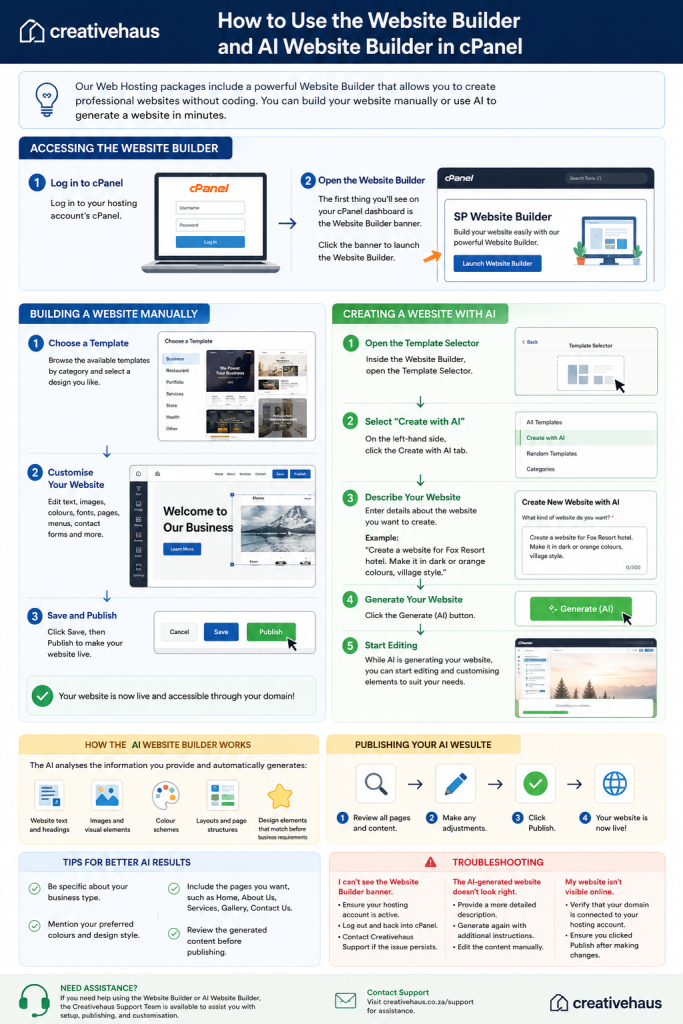
Our Web Hosting packages include a powerful Website Builder that allows you to create professional websites without coding. Whether you prefer building your website manually or letting AI generate a website for you, the Website Builder makes getting online quick and easy.
Before You Begin
To use the Website Builder, you will need:
- An active Creativehaus Web Hosting package
- A registered or transferred domain connected to your hosting account
- Your cPanel login credentials
Accessing the Website Builder
Step 1: Log in to cPanel #
Log in to your hosting account’s cPanel.
Step 2: Open the Website Builder #
The first thing you’ll see on your cPanel dashboard is the Website Builder banner.
Click the banner to launch the Website Builder.
Building a Website Manually
Step 1: Choose a Template #
Once the Website Builder opens:
- Browse through the available website templates.
- Select a category that best matches your business or project.
- Choose a template you like.
Step 2: Customise Your Website #
You can edit various elements, including:
- Text and headings
- Images and galleries
- Colours and fonts
- Pages and menus
- Contact forms and buttons
Step 3: Save and Publish #
After making your changes:
- Click Save.
- Click Publish to make your website live.
Your website will now be accessible through your domain.
Creating a Website with AI
The AI Website Builder can generate a customised website in minutes based on a simple description of your business.
Step 1: Open the Template Selector
Inside the Website Builder, open the Template Selector.
Step 2: Select “Create with AI”
On the left-hand side, click the Create with AI tab.
Step 3: Describe Your Website
In the description box, enter details about the website you want to create.
Example:
Create a website for Fox Resort Hotel. Make it in dark or orange colours and use a village-style design.
The more information you provide, the better the AI can personalise your website.
You can include information such as:
- Business name
- Type of business
- Preferred colours
- Style and layout preferences
- Services offered
- Desired pages
Step 4: Generate Your Website
Click the Generate (AI) button.
The AI will begin creating your website automatically.
Step 5: Start Editing
While the AI is generating your website, you can begin editing and customising elements to suit your requirements.
How the AI Website Builder Works
The AI analyses the information you provide and automatically generates:
- Website text and headings
- Images and visual elements
- Colour schemes
- Layouts and page structures
- Design elements that match your business requirements
Publishing Your AI Website
Once you are satisfied with the generated website:
- Review all pages and content.
- Make any necessary adjustments.
- Click Publish.
Your website will then be live on your domain.
Tips for Better AI Results
✅ Be specific about your business type.
✅ Mention your preferred colours and design style.
✅ Include the pages you want, such as:
- Home
- About Us
- Services
- Gallery
- Contact Us
✅ Review the generated content before publishing.
Troubleshooting
I can’t see the Website Builder banner. #
- Ensure your hosting account is active.
- Log out and back into cPanel.
- Contact Creativehaus Support if the issue persists.
The AI-generated website doesn’t look right. #
- Provide a more detailed description.
- Generate the website again with additional instructions.
- Edit the generated content manually.
My website isn’t visible online. #
- Verify that your domain is connected to your hosting account.
- Ensure you clicked Publish after making changes.
Need Assistance? #
If you need help using the Website Builder or AI Website Builder, the Creativehaus Support Team is available to assist you with setup, publishing, and customisation.


