


Browser cache and cookies help websites load faster, but sometimes they can cause issues such as outdated pages, login problems, or errors when accessing a website. Clearing your cache or using a private browsing window can help resolve these issues quickly.
What Is Browser Cache?
Browser cache stores temporary website files (images, scripts, and data) on your device to improve loading speed. Over time, cached data can become outdated or corrupted.
Clearing the cache forces the browser to load the latest version of a website.
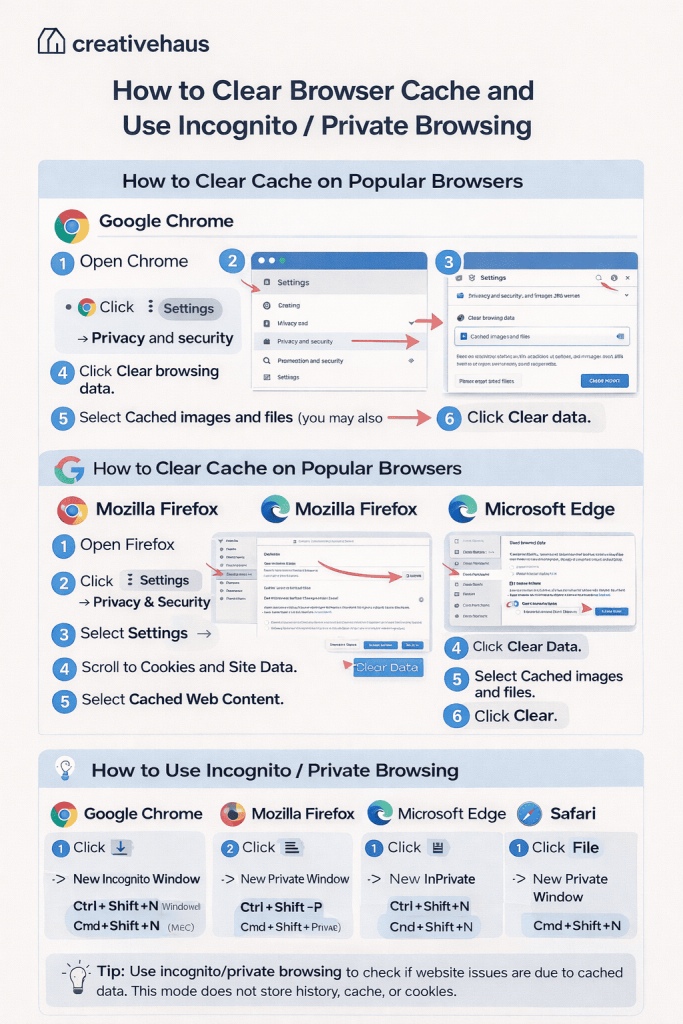
How to Clear Cache on Popular Web Browsers
Google Chrome #
- Open Chrome.
- Click the three dots (⋮) in the top-right corner.
- Select Settings → Privacy and security.
- Click Clear browsing data.
- Select Cached images and files (you may also select Cookies if needed).
- Choose a time range (recommended: All time).
- Click Clear data.
Mozilla Firefox #
- Open Firefox.
- Click the menu (☰) in the top-right corner.
- Select Settings → Privacy & Security.
- Scroll to Cookies and Site Data.
- Click Clear Data.
- Select Cached Web Content.
- Click Clear.
Microsoft Edge #
- Open Edge.
- Click the three dots (⋮) in the top-right corner.
- Select Settings → Privacy, search, and services.
- Under Clear browsing data, click Choose what to clear.
- Select Cached images and files.
- Click Clear now.
Safari (macOS) #
- Open Safari.
- Click Safari in the top menu.
- Select Settings → Privacy.
- Click Manage Website Data.
- Select Remove All.
How to Use Incognito / Private Browsing
Private browsing opens a session that does not store cache, cookies, or browsing history. This is useful for testing websites, logging into accounts, or troubleshooting issues.
Open Incognito / Private Window #
- Google Chrome:
Click ⋮ → New Incognito Window
Shortcut: Ctrl + Shift + N (Windows) / Cmd + Shift + N (Mac) - Mozilla Firefox:
Click ☰ → New Private Window
Shortcut: Ctrl + Shift + P / Cmd + Shift + P - Microsoft Edge:
Click ⋮ → New InPrivate Window
Shortcut: Ctrl + Shift + N - Safari:
Click File → New Private Window
Shortcut: Cmd + Shift + N
When Should You Clear Cache or Use Private Browsing?
- Website changes are not showing
- Login or session issues
- Website errors or incorrect page display
- Testing a site without saved data
- Accessing multiple accounts at once
Important Notes
- Clearing cache will not delete saved passwords unless selected.
- Private browsing does not make you anonymous online; it only prevents local data storage.
- Closing all private windows ends the private session.
✅ Tip: If an issue persists after clearing cache, try both clearing cookies and opening the website in a private window.


