


Overview
You can use the Gmail app on Android or iOS to manage your cPanel email account. This guide shows you how to add your email account using either IMAP (recommended for syncing across devices) or POP3.
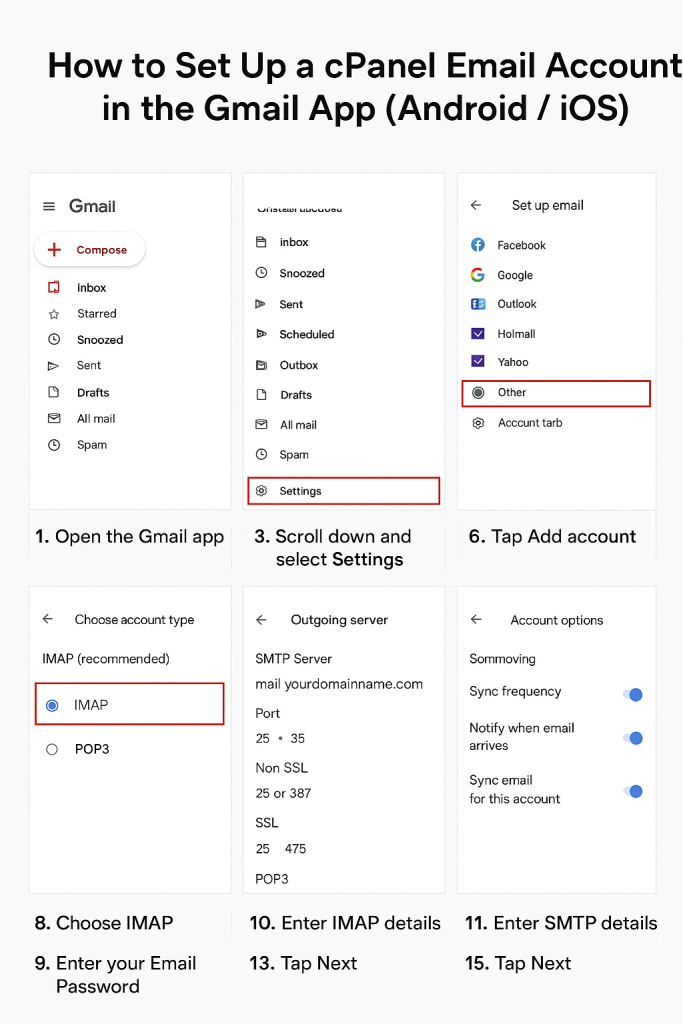
Step 1: Open the Gmail App
- Launch the Gmail app on your phone.
- Tap the menu (☰) in the top-left corner.
- Scroll down and select Settings.
- Tap Add account.
Step 2: Choose Account Type
- Select Other (not Google, Outlook, Yahoo, etc.).
- Enter your full email address (e.g., yourname@example.com).
- Tap Manual Setup.
Step 3: Select Account Type
Choose one of the following:
- IMAP (recommended for syncing email across devices)
- POP3 (downloads and stores mail locally)
Step 4: Enter Incoming Mail Server Settings
- Username: Full email address (yourname@example.com)
- Password: Your email account password
- Server:
- Non-SSL: mail.yourdomainname.com
- SSL: host.yourdomainname.com (server hostname)
Ports:
- IMAP (Non-SSL): 143
- IMAP (SSL): 993
- POP3 (Non-SSL): 110
- POP3 (SSL): 995
Tap Next to continue.
Step 5: Enter Outgoing Mail Server (SMTP) Settings
- SMTP Server:
- Non-SSL: mail.yourdomainname.com
- SSL: host.yourdomainname.com
- Port:
- Non-SSL: 25 or 587
- SSL: 465
- Require Sign-in: Yes (must be checked)
- Username: Full email address
- Password: Your email password
Tap Next.
Step 6: Account Options
Select your preferences:
- Sync frequency (how often Gmail checks for new mail)
- Notifications
- Download attachments automatically
Tap Next.
Step 7: Finish Setup
- Enter a name for the account (optional, helps you identify it).
- Enter the display name (how your name appears when sending emails).
- Tap Done.
Your cPanel email account is now set up in the Gmail app and ready to use.
Troubleshooting
- Authentication Failed: Double-check your email/password and ensure SMTP authentication is enabled.
- Certificate Warning: If your server uses a self-signed SSL, accept the certificate or ask your host to install a verified SSL.
- Cannot Send Emails: Ensure “My outgoing server requires authentication” is enabled and ports are correct.
✅ You can now send and receive your cPanel emails from the Gmail app!


